• Skip to main content

Training for Translators

Classes for translators and interpreters

  • Start here
  • Blog
  • Classes
    • Coaching for freelancers
    • Subscription
  • Books
    • Translate my books
    • Book Shop
  • About/Contact
    • Privacy Policy
  •  
  • Account

Technology

Oct 28 2016
Corinne McKay

Very basic SEO for your freelance website

SEO for freelancers: how important is it? Many freelancers wonder how important search engine optimization (SEO) is, when it comes to your business website and how much traffic you can expect it to attract. Very important? Not at all important? Somewhere in between? With the caveat that this is a very basic introduction and I’m far from an SEO expert, let’s take a look.

First, yes, SEO is important, *if* you want your freelance website or blog to be actively drawing traffic. That sounds obvious, but some freelancers don’t really care about attracting potential clients to their website; they want it simply as an online brochure, or as something to show to clients who are already interested in them. But if you *do* want to actively attract potential clients to your website, SEO is really, really important. Many sources estimate that more than 50%, and perhaps as much as 75% of website traffic is the result of what’s called organic search, meaning that someone Googles “translate German patent,” and finds your web page about German patent translation.

As an example, yesterday my blog got 681 views. Of those, 361 came from “referrers,” meaning an incoming link to my blog. Of those 361, 278 were from search engines, with Google accounting for 264. And that approximate percentage seems fairly constant: the day before yesterday, my site had 912 views, with 484 coming from referrers, of which 309 were Google. So, yes, it’s important.
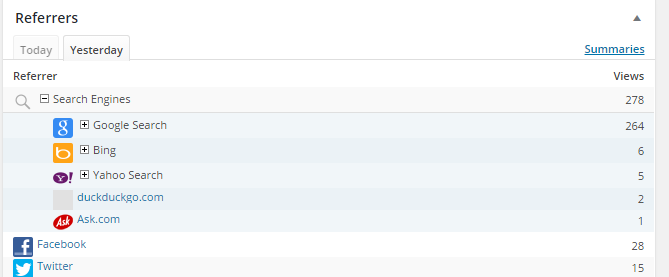
Referrers to my blog

If you know little or nothing about SEO, start by learning. Search Engine Watch has a fairly technical but very comprehensive list of 22 factors that may affect your site’s search engine ranking. Here’s a less technical explanation for freelance writers, from Daily Writing Tips.

The foundational concept of SEO for freelancers is keywords: meaning that your site needs to include terms that people enter into Google when they need someone like you. As an example, if you Google “certified French translator,” my business website is the third result.
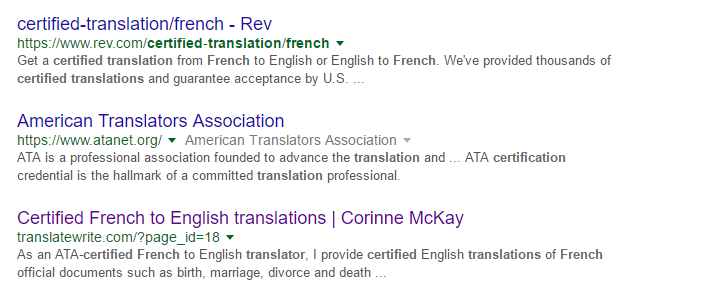
SEO for freelancers: site ranks #3 on Google
Not surprisingly, an average day in the office brings at least one inquiry from someone who found my website and needs a certified translation. I enjoy this kind of work, so I created a web page specifically for it, for SEO purposes. So, step one of SEO is to make sure that your site includes relevant keywords.

Equally importantly, SEO does not mean writing in a contrived, infomercial-esque style. “Keyword stuffing” (repeating your keywords ad nauseum) can actually hurt your search engine rankings, and helpful, relevant content that a lot of other people link to will definitely help. SEO-friendly writing is a specific (and very marketable) skill; just Google “SEO copywriting course” and you’ll enter a whole universe of learning how to write for SEO.

So that’s the content-related part: get your relevant keywords in there, largely by thinking about what your potential clients are Googling. My unscientific dabbling in SEO also makes me think that a series of web pages dedicated to just one service you provide (i.e. patent translation, literary translation, website localization, conference interpreting) will rank higher than a general “Services” page listing everything you do.

On the technical side, you should do a couple of things. Make sure your site is fast, which is mostly determined by your hosting provider, and make sure it works well across devices, meaning that it looks good and is usable on a regular computer and on mobile devices. Then, at least install a basic SEO plugin so that you have some idea how your pages or posts will rank on Google. I use Yoast SEO (a WordPress plugin) and I’m very happy with it for my purposes. Most helpfully, Yoast gives you real-time feedback while you’re writing. For example, here’s this post’s Yoast SEO analysis as of this very moment:
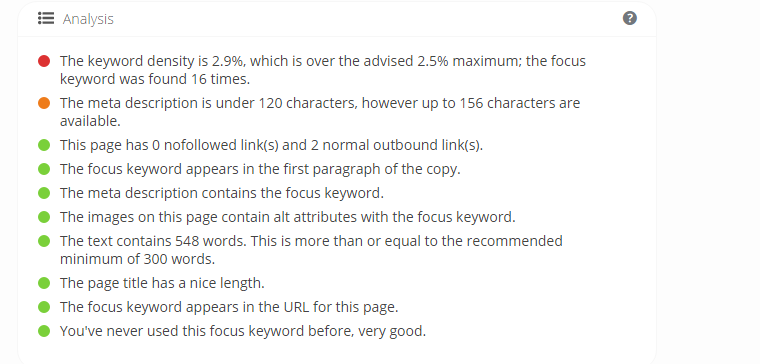
Yoast SEO screenshot

You don’t want to be enslaved by this analysis; for example Yoast thinks that I’m actually using my focus keyword, “SEO,” *too much* in this post, which could cause Google to classify it as spam. But the real-time analysis can be extremely helpful, for example by prompting you to add some images or links to your post, or to add alt tags (the text that displays if the photo doesn’t load) to the images. Again, if you don’t much care about incoming website traffic, don’t let this keep you up at night. But if you do care, it’s worth paying attention to.

I’m sure that many readers know much more than I do about SEO, so feel free to chime in with your own tips too! One question I am often asked: is it worth hiring an SEO expert to work on your site? Not sure, and I’ve never done it. Thoughts from readers?

Written by Corinne McKay · Categorized: Technology · Tagged: SEO for freelancers, website SEO

Oct 13 2016
Corinne McKay

LinkedIn connections: what’s your strategy?

One of my goals for this quarter is to make better use of LinkedIn; I feel like it’s an underutilized tool for freelancers, and I want to explore its usefulness for my own purposes and for some students who’ve asked me about it. But here’s a fundamental question about your LinkedIn presence: how do you decide whose connection requests to accept or ignore?

Back in the day (let’s say before 2014 or so), my rule for LinkedIn connection requests was fairly rigid and fairly straightforward: if I don’t know you, and you don’t write a personal message saying how you know me, I don’t accept your request. My feeling was that there was little value in being connected to complete strangers on LinkedIn. Then, things changed in a few ways. Most problematically, LinkedIn now makes it harder to send a personal message (in place of the standard “I’d like to add you to my professional network on LinkedIn”), even if you want to. For example if you simply click on a connection that LinkedIn suggests, your connection request is automatically sent; you have to first click through to the person’s profile if you want to send a personal message along with your request.

As a result, I’ve relaxed my strategy over the years. I now accept most requests from people who already have a number of shared connections with me, and who work in the T&I industry in some capacity. On the positive side, I actually enjoy the status updates feature of the LinkedIn home page (where you can see what your connections have recently posted), and the updates are a lot more interesting when you have a lot of connections. The downside is that I’ve now amassed over 1,500 LinkedIn connections, many (or even most) of them to people who I know nothing about, except that they seem to be translators or interpreters and sent me a connection request. This gets problematic when I get an introduction request from someone else (“Can you refer me to this person?”), or a request for information about one of my connections (“What’s this person like to work with?”).

So, I feel like I’m in a bit of LinkedIn limbo: I don’t see the appeal of the LION (LinkedIn open networker) strategy, but I also feel that the days of restricting one’s LinkedIn network only to people with whom one has a personal connection are probably over. Any other thoughts on the pluses and minuses of this?

Written by Corinne McKay · Categorized: Social networking, Technology · Tagged: LinkedIn, LinkedIn connection strategy

Aug 29 2016
Corinne McKay

Reader question: how do I choose a translation memory tool?

A reader asks: “How do I choose a translation memory tool? I feel like I need one, but I have no idea how to pick. They all seem confusing and expensive, and I don’t know where to start.”

Short answer: If the TM tool is just for your own use, test-drive a few or ask colleagues about their experiences, then pick the one you like best. If you’re buying the TM tool because your clients require it, or because you think it will be a marketing advantage, then buy the one that your clients (or desired potential clients) want.”

Longer answer: It’s a complicated question. Here’s my story. For years and years, I used Wordfast Classic, which is light, easy to learn to use, and has good documentation and support. I really liked it, and I had sort of vowed to never upgrade to one of the “big guys” because I perceived them as expensive and difficult to learn to use. Then, about five years ago, along came a client who offered me a very large, ongoing project that required Trados Studio. At that point, I realized that I had been resisting buying one of the market leaders simply for the sake of resisting (…they won’t get my money, I’ll patch it together on my own, etc. etc.). So I bought Trados, hired an individual trainer to help me learn to use it, and was up and running in less than a week. And all in all, I like Trados Studio. It’s a bit complicated to learn, it can generate some inscrutable error messages, and it’s a bit bloated for projects like a one-page Word document, but I’m not looking to switch tools.

It’s important to look at a TM tool as a business investment, not an emotional decision. Translators get very emotional about their attachment to, or hatred of, certain TM tools and the companies that make them. As a recovering TM resister, I’m here to tell you that that’s misguided. It’s a business investment: will this tool help you land new clients, work more efficiently or produce better translations? Then buy it. If not, don’t. It’s that simple.

Lots of students in my classes wonder if they should pre-emptively buy a TM tool, as a selling point to potential clients. Maybe. In general, we freelance translators are frugal…sometimes we’re cheap. Frugal is good; frugal means that you’re wise with your money. Cheap is not good; cheap means that you’re unwilling to spend money on a tool that is required in order for your business to thrive. If you’re cheap, and using Windows XP and Office 2003 on an ancient laptop, that’s a false economy. At the same time, it’s not wise to spend $1,000 each on three different TM tools you might never use. But if you’ve heard from other translators that the clients you want to work for require a certain tool, it’s probably a good investment to buy it proactively. The caveat is that, depending on the kind of translation work you do, a TM tool can be either useless (if you translate novels) or indispensable (if you translate software). So, you don’t want to invest in one of the market leaders if you’re not sure you need it.

Some translators wonder if free TM tools are any good. That’s easy: yes. I love OmegaT. I actually find its matching algorithm better than Trados Studio’s, and it’s much more stable (no “object not set to an instance of an object” errors). And the market leaders sure aren’t going to say, “Go ahead and localize our tool into Slovenian! We’re excited to see the results!” The sticking point is that, especially if your client is not particularly tech-savvy, exchanging files through .tmx may entail some hiccups. In theory, the .tmx files are compatible between tools. In practice, each tool is going to do things (like segmentation) slightly differently. So, the client is more likely to say, “To work with us, you have to have X tool.” But yes, free TM tools can definitely get the job done.

An additional factor is that the TM tool market is fragmented; agencies may require memoQ, or Trados, or Wordfast Pro, or Memsource, or Across, or Fluency, or something else that they maintain in-house. Of the market leaders, I would say that Trados is the most widely-used, memoQ has the best reputation for support, and Wordfast Pro is the only one that is truly cross-platform. So, they all have their pluses and minuses. Additionally, you’ll need to either hire a trainer, or put in some unpaid time to learn to use the tool. Just as you don’t learn to use Photoshop in an hour, you don’t master a full-featured TM tool in that amount of time.

To close, two specific tips:
-Whatever your level of interest in translation technology, subscribe to Jost Zetzsche’s newsletter The Tool Box (not an affiliate deal, I just love it!). Jost will follow the trends for you, so that you don’t have to.
–When you buy a tool, don’t pay list price. Purchase the tool at a conference, where discounts are often offered, or use a group buying opportunity on a site like ProZ (again, not an affiliate deal).

Readers, any thoughts on choosing a TM tool?

Written by Corinne McKay · Categorized: Technology · Tagged: choosing a translation memory tool, TM tools, translation memory tools

May 25 2016
Corinne McKay

Involuntary Windows 10 upgrade: survivable but aggravating

My primary work computer (a Lenovo ThinkPad T440 that I bought about two years ago) has been running Windows 8.1 since I purchased it. Like everyone else running Windows 7 or 8, I’ve been receiving periodic and increasingly frequent popups to “schedule my free Windows 10 upgrade.” I declined those notifications, simply because my plan was to budget for a new computer in 2017, purchase it with Windows 10 installed, and then upgrade several other pieces of software at the same time. Specifically, I still use Office 2010, and I was concerned that the Windows 10 upgrade might not work well with it. However, as far as I could tell, there was no “don’t show me this again” option on the Windows 10 upgrade popup, so I just closed each one as it came up.

Flash forward to Monday (two days ago); I was talking on Skype while turned away from my computer and looking out the window. So I can’t say what happened at the critical moment, but my Skype call suddenly dropped, which of course prompted me to look at the computer screen. And…the Windows 10 upgrade had begun. So I’m not sure if I hit the trackpad with my elbow, or if the upgrade actually launched on its own, or something else; but the point being, there it went, and as far as I could tell, there was no way to cancel or pause it.

After spending a minute or two freaking out (I also had a large translation due Monday night and still needed to finish it), I decided to just run some errands, make some phone calls and get some coffee and try to stop freaking out. In the end, the upgrade took about an hour and a half, but the outcome has been largely fine (other than being up until 11:30 proofreading the translation mentioned above…). All of my software and settings transferred normally to Windows 10, and as far as I can tell, the only blips are:

  • The preview function doesn’t work in Office 2010; so for example when you’re attaching a file to an e-mail, you can’t preview it in the file selection pane
  • You have to reassign the preferred application for some functions (i.e. always open PDF attachments with Adobe Reader, make Firefox my default browser, etc.)

Aside from that, everything seems OK; I have Trados Studio 2014 SP2, and it’s working fine. A few thoughts on this whole drama:

  • The worst part was the unexpected nature of the upgrade and the two hours of lost work time; had I been on an important call with a client, or presenting a webinar, or on a really tight deadline, that element alone could have been a disaster. If you have a Windows 7 or 8 computer, I would recommend doing one of two things: either schedule the Windows 10 upgrade for a time when you are not working (for example run it on Friday evening so that you have the weekend to clean up any messes), or install a plugin like Never10 that permanently disables the upgrade notifications (thanks to Colorado Translators Association member Karen Williams for that tip!).
  • The other question is how long the free Windows 10 upgrade period will last and what happens after it ends. No clear answers there.
  • And as always, make sure that everything on your computer is fully backed up at all times, in case this, or another unexpected IT event, occurs. I use and love SugarSync (not an affiliate deal) because it keeps my designated folders backed up with no action on my part, but just make sure that you’re doing something bombproof to keep your files backed up.
  • Have a disaster recovery plan, at least in your head. As I watched the Windows 10 upgrade roll and thought about my imminent deadline, I also thought, “What am I going to do if the machine doesn’t come back up, or if my old software doesn’t work?” Since everything in the My Documents folder is synced to my cloud storage, the solution would be to immediately to buy another laptop and download My Documents onto it; expensive and stressful, but it would have worked, and worked much better than restarting the 10,000 word translation.

Readers, any other thoughts on this?

Written by Corinne McKay · Categorized: Technology · Tagged: Windows 10, Windows 10 upgrade

Jan 13 2015
Corinne McKay

A simple but lifesaving tech tip: recovering an unsaved attachment

I’m pretty meticulous about my IT procedures, and luckily I’ve never had a major IT catastrophe. But here’s a minor IT annoyance that has heretofore sucked up an inordinate amount of my time: unsaved Gmail attachments. And now, there’s a solution!

As I’ve written about before, I use Gmail with my own domain name, to take advantage of the Gmail features without having to use a Gmail address for work. I’m not sure if this oddity is specific to Gmail, but here we go: if someone sends you a Word document as an attachment and it’s in .doc format (i.e. pre-Word 2007), Gmail will not open the document directly, and forces you to save it…so this issue does not occur. But if someone sends you a Word document as an attachment and it’s in .docx format (i.e. Word 2007 or later), Gmail gives you the option to either open the document or save it, and I most often just go ahead and open the attachment so that I can read it right away.

Here’s where you can tell that a key variable in this situation is me: I could simply train myself to *never* use the direct-open feature, but so far I haven’t succeeded at that either. Let’s continue on: you’re happily reading your direct-opened .docx document, and, here’s where I maintain that the issue isn’t just my stupidity, you’re even clicking “Save” periodically and Word is happily appearing to save (actually Word is happily saving, just not where you think it’s saving). Word does not give you the “Save As” dialog box as it would if you were trying to save a previously unsaved document. This most often happens to me when students in my classes send me their homework as a Word document; I want to get back to them right away, so I pop the thing open, type lots of comments, press Save lots of times, and then close the document, and again, there’s no prompt to choose a folder for the document (because Word is stashing it away in an undisclosed location)…the document just closes. Then when you go to reopen it, it’s not in the folder where you fantasize that you saved it (insert an image of me, frantically searching that student’s folder for their Lesson 3 homework that I just spent an hour commenting on…) and the document is not in the “Recent” tab in Word. Where the bleep is the thing?

Well, those of you who are more IT-savvy than I am probably already know that it’s in a deep, dark folder reserved for temporary documents downloaded from the Internet. I promise you, it’s there: but do not muck around and do stupid, panicky things like trying to reopen the attachment from the original e-mail in hopes that your changes will be there (they’re not there, and you’ll only overwrite the copy of the document you’re looking for: don’t ask me how I learned that). Instead, follow the instructions in this post from Oded Ran’s blog “Tech Chutzpah” and breathe a sigh of relief. Seeing that this post has eleven hundred comments made me feel better, because at least it’s not just me. Basically you need to locate the folder where your web browser stores your temporary files, and there you’ll find your meticulously edited Word document, and you can open it and finally hit Save As; Oded’s post will walk you step-by-step through what you need to do to find that folder. Thank you!!!

Written by Corinne McKay · Categorized: Technology · Tagged: recover Gmail attachment, recover temporary files, recover unsaved attachment, recover Word doc, unsaved attachment

  • « Go to Previous Page
  • Page 1
  • Page 2
  • Page 3
  • Page 4
  • Interim pages omitted …
  • Page 18
  • Go to Next Page »

Copyright © 2026 · Training For Translators · Log in

This website uses cookies to improve your experience. We'll assume you're OK with this, but you can opt-out if you wish. To view this website's privacy policy, click About>Privacy Policy. Accept Read More
Privacy & Cookies Policy

Privacy Overview

This website uses cookies to improve your experience while you navigate through the website. Out of these, the cookies that are categorized as necessary are stored on your browser as they are essential for the working of basic functionalities of the website. We also use third-party cookies that help us analyze and understand how you use this website. These cookies will be stored in your browser only with your consent. You also have the option to opt-out of these cookies. But opting out of some of these cookies may affect your browsing experience.
Necessary
Always Enabled
Necessary cookies are absolutely essential for the website to function properly. This category only includes cookies that ensures basic functionalities and security features of the website. These cookies do not store any personal information.
Non-necessary
Any cookies that may not be particularly necessary for the website to function and is used specifically to collect user personal data via analytics, ads, other embedded contents are termed as non-necessary cookies. It is mandatory to procure user consent prior to running these cookies on your website.
SAVE & ACCEPT